Keyer · CW trainer · CW interface · no driver, no app

Your paddles, your radio and your computer, on one USB-C cable

SmartCW is an iambic keyer, a CW trainer and a CW interface in one small box. Plug in paddles or a straight key and it keys your transceiver, stands in as your contest logger's WinKeyer, keys your SDR software over MIDI, or types what you send into any program, while sending anything you type as Morse. Its own web page holds every setting, the visual Morse tree and a complete CW trainer.

Works onLinuxmacOSWindows
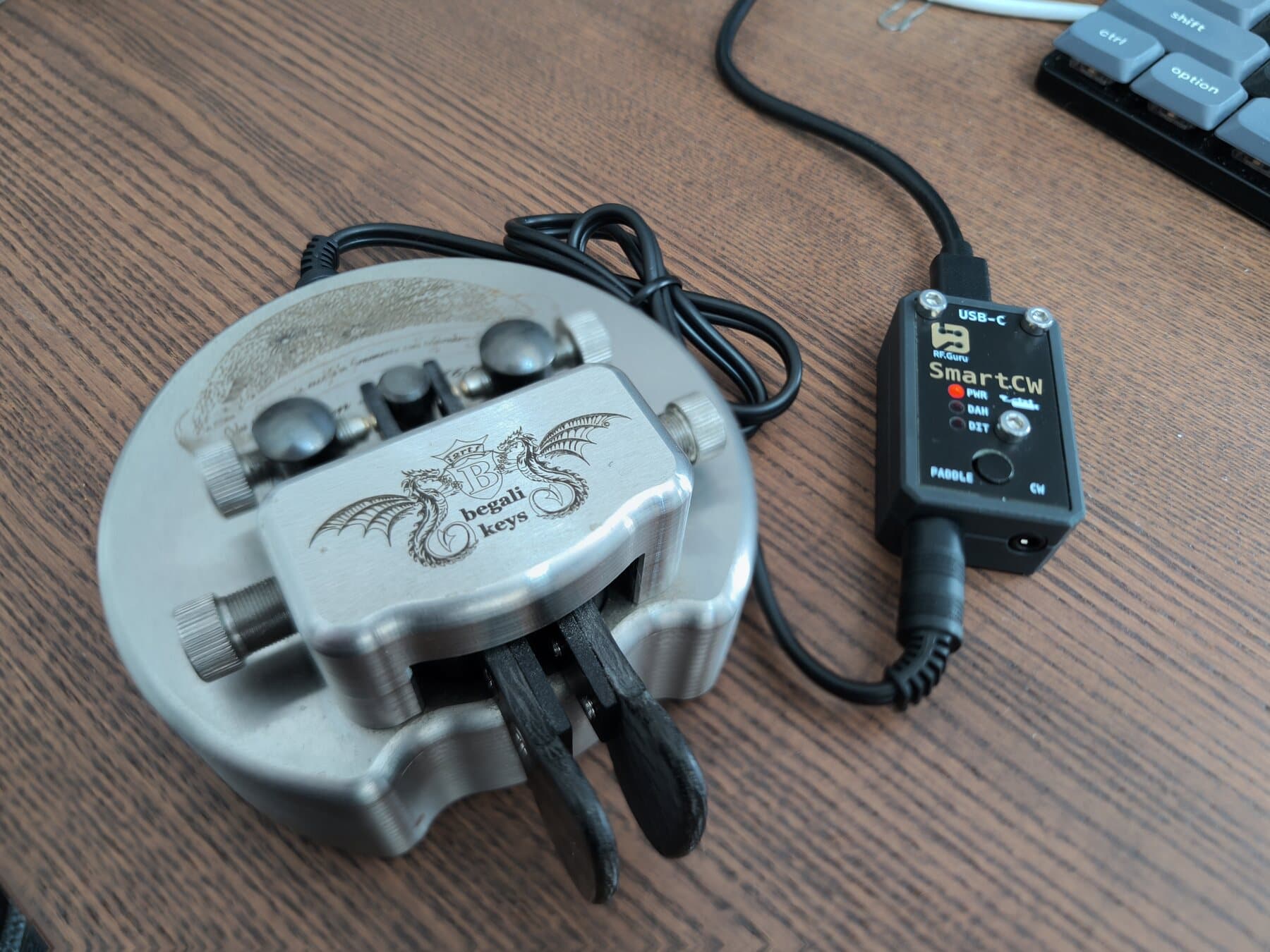
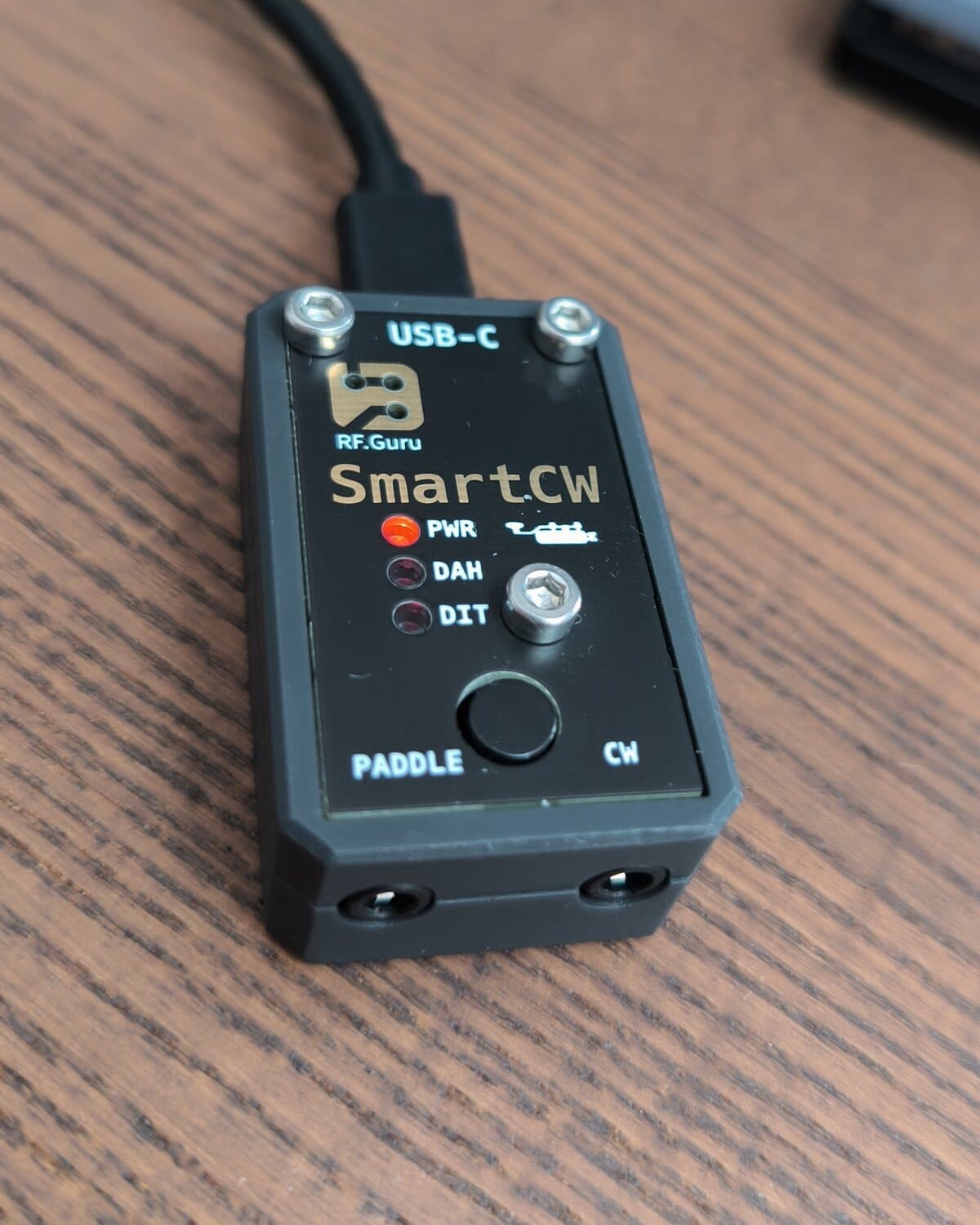
SmartCW, a small black box with PWR, DAH and DIT LEDs, a PTT button and PADDLE and CW jacks, wired to an iambic paddle and to a computer over USB-C
SmartCW on the desk, with a paddle on its PADDLE jack and the computer on its USB-C cable.

One box, three jobs

Between your paddles, your radio and your computer, SmartCW does what usually takes a keyer, an interface and a training app.

A keyer

Iambic A and B, ultimatic, bug or straight key, 5 to 99 wpm, with weighting, dah ratio, paddle swap and autospace; hold PTT and tap a paddle to change speed. The timing runs in a 1 kHz interrupt that USB and network traffic never touch: at 20 wpm a dit is 60 ms and a dah 180 ms, measured over MIDI.

A CW trainer

Koch method on your own paddles, copy practice, callsigns, words, Q-codes, QSO practice, head copy, your own text and a fist analyzer, in your browser with SmartCW's own sidetone. Nothing is transmitted while you train.

A CW interface

It keys the radio, or gives PTT with the CW tone on line out for FM, SSB or a data input. Contest loggers use it as their WinKeyer, SDR software over USB MIDI, vBand and Vail as paddle keys, any program as a keyboard. And the other way: text from a logger, the browser, a terminal or a memory goes out as Morse.

What it does

Everything in the box, with nothing to install.

Five key types, 5 to 99 wpm

Iambic A, iambic B (the classic Curtis B), ultimatic, bug or straight key. Hold PTT and tap a paddle for 1 wpm slower or faster, no computer needed; a long press on PTT switches to straight key and back.

Transmit three ways

Key line: the CW jack keys your radio like a straight key. Audio + PTT: the jack is PTT, with lead and tail, and the CW tone goes out on line out. Practice: nothing is transmitted. Keying compensation and first-element extension for QSK radios.

Its own sidetone

On the piezo and on line out, 300 to 2000 Hz, each with its own level from 1 to 10. Headphones or the radio's input, you choose.

Decodes what you send

Everything you key comes back as text, over USB serial, TCP and the web page. On a straight key or a bug it follows your speed as you go.

Sends what you type

From the web page, serial, TCP or six memories that fill in {call} and {name}. Farnsworth spacing, and prosigns written as <SK>, <KN>, <AR>, <BT>, <AS>, <BK>, <HH>.

Your logger's WinKeyer

The USB serial port answers the K1EL WinKeyer protocol, so it works with WinKeyer loggers: N1MM+, DXLog, Win-Test, fldigi, CQRLOG, Log4OM and more. Linux loggers can key it through cwdaemon.

Contest serial numbers

{nr} in a memory sends the serial number and moves on to the next; {lastnr} repeats it when they ask again. Cut numbers if you like: 0 as T, 9 as N.

USB MIDI for SDR software

The keyer's output as one MIDI note, or the raw paddle contacts as two so your SDR software does the timing. A PTT note besides, every note number yours to set.

Internet CW

For vBand and Vail the paddles become the Left and Right Ctrl keys those sites listen for, with no adapter in between. Vail over MIDI is one click in Settings.

A keyboard that listens

Decoded CW is typed into whatever window has focus, the PTT button types Enter. For one session by holding PTT while you plug in, or always.

Beacon and tune

A beacon that repeats its message every 5 seconds to an hour, for antenna tests and fox hunts, and key down for up to 20 seconds to tune.

The paddles always win

Touch a paddle and any text, beacon or tune in progress stops at once. You are always the one in control of the key.

A network on the cable

SmartCW is a small USB network adapter with a web page at smartcw.local. It hands out no gateway and no DNS, so your internet connection stays as it is.

Serial and TCP

The same text protocol on the USB serial port and on TCP port 23: type to send, read what is decoded, and change any setting with a ! command.

One plain config.txt

Every setting lives in a self-documenting text file. Change it on the web page, with a command, or edit it on the SMARTCW drive SmartCW shows when you hold both paddles while plugging in.

http://smartcw.local/

Every setting and the whole trainer, in your browser

Over the same USB-C cable SmartCW is a small network adapter, and it serves its own page in the RF.Guru style. Open smartcw.local or 192.168.7.1: no driver, no app, no internet connection, and nothing to log in to.

  • Live

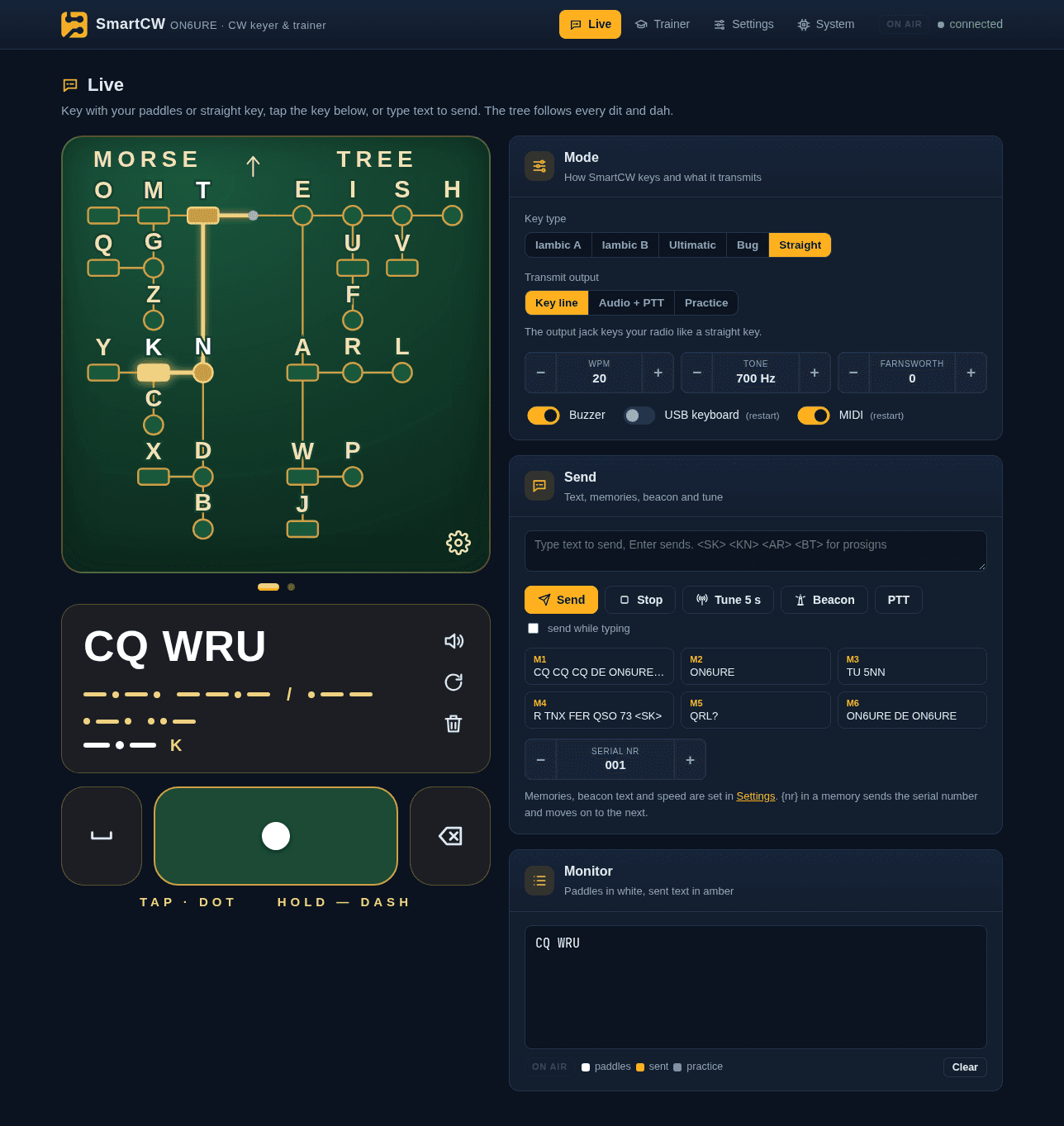
    The visual Morse tree follows every dit and dah from your paddles; tap a letter to hear it, swipe for numbers and signs. The decoded text with its Morse, an on-screen key (tap is a dot, hold is a dash), key type and output, speed and tone, text, memories with a contest serial number, beacon, tune, PTT and a monitor of everything sent and received.

  • Trainer

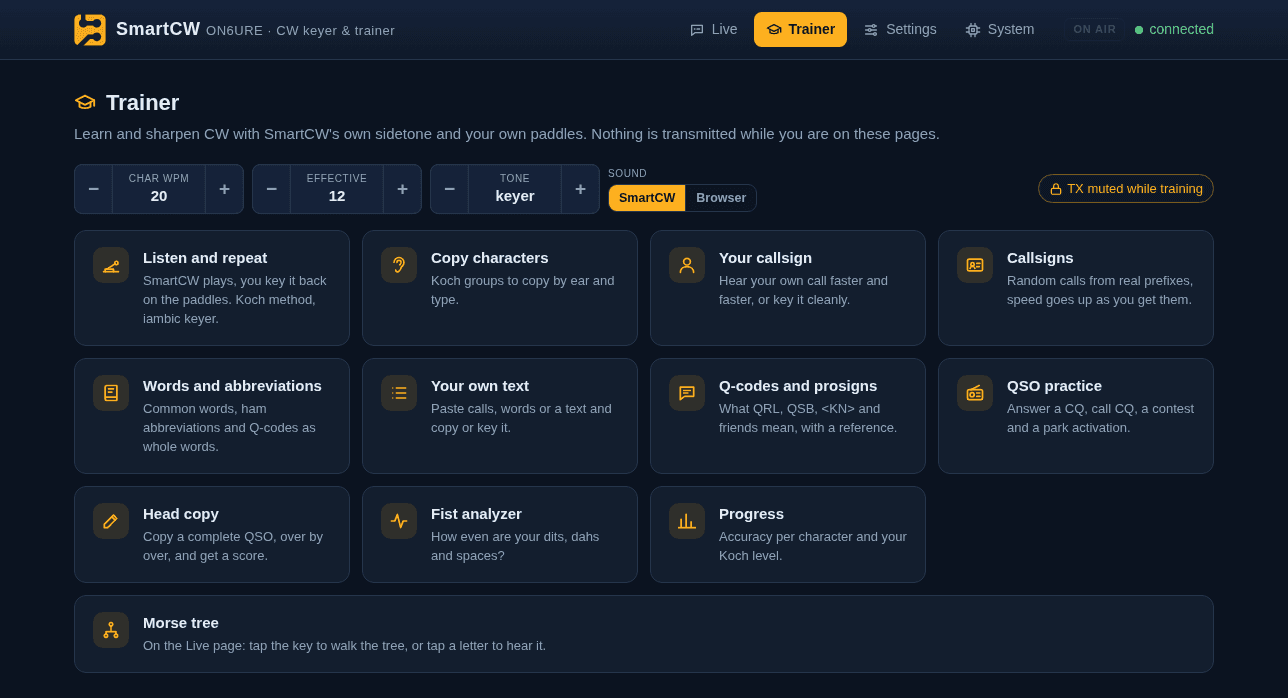
    Eleven exercises, from Koch listen-and-repeat to a complete QSO in head copy or a text of your own, with its own speed, Farnsworth spacing and pitch.

  • Settings

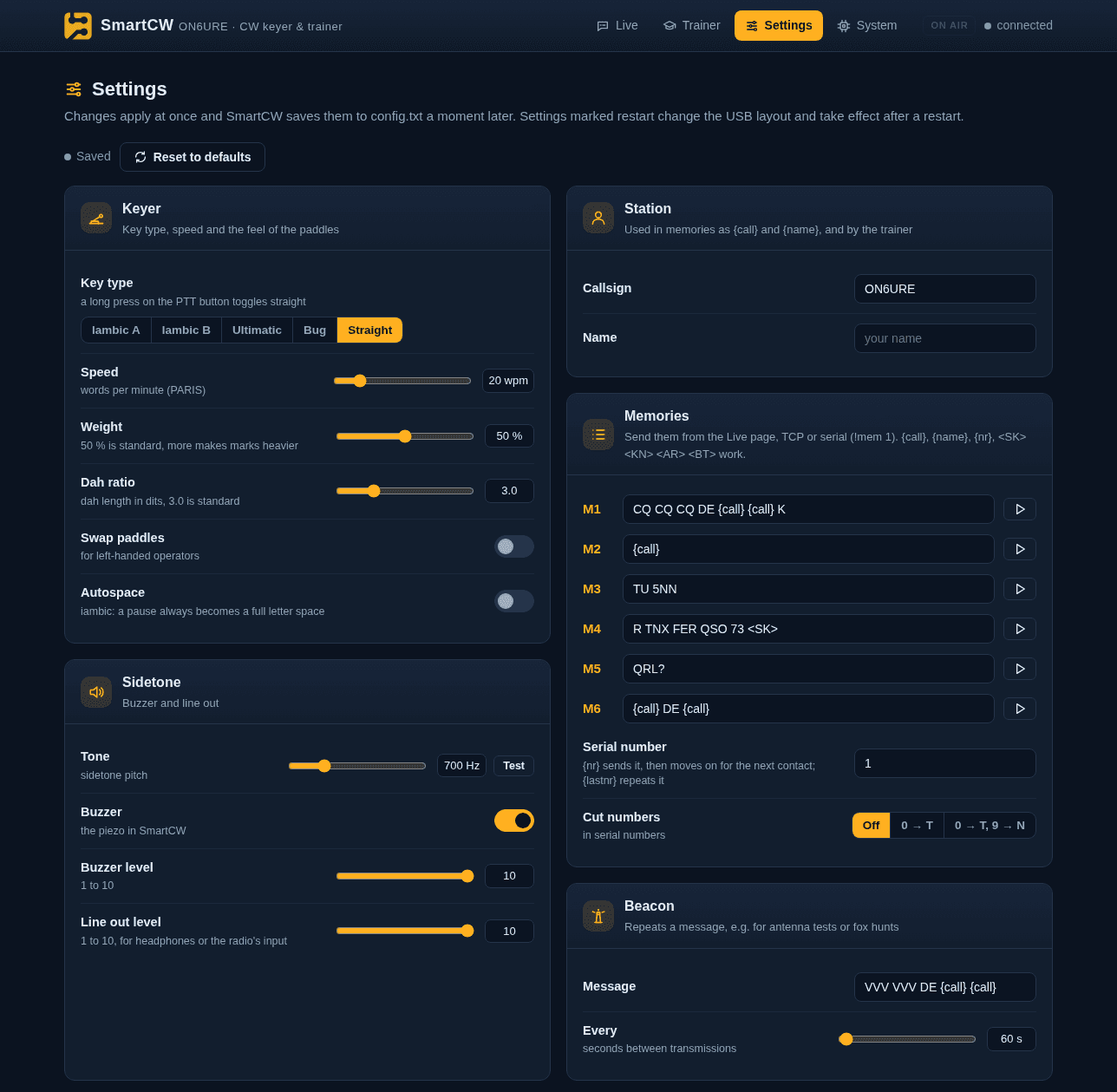
    Every setting, applied at once and saved to config.txt a moment later. Reset to defaults keeps your callsign, name and memories.

  • System

    Status, a command console, backup and restore of config.txt, the firmware update, and how to connect SDR software, loggers and internet CW.

smartcw.local/#/live
SmartCW's Live page: the green Morse tree with the path to K lit, the decoded text CQ WRU with its Morse, the on-screen key, and panels for key type, output, speed, tone, text sending, memories M1 to M6, the serial number and the monitor
The Live page, as SmartCW serves it: the Morse tree follows the paddles.
smartcw.local/#/train
The Trainer page: character speed 20 wpm, effective 12, tone and sound source, TX muted while training, and the eleven exercises as tiles
Trainer: its own speed, Farnsworth and pitch; TX muted while you are on it.
smartcw.local/#/settings
The Settings page: keyer, station, memories with the serial number and cut numbers, sidetone and beacon panels with sliders, toggles and text fields
Settings: applied at once, saved to config.txt a moment later.

A CW trainer that uses your own paddles

Eleven exercises, from your first two letters to head copy of a whole QSO, or a text of your own. SmartCW plays them on its own sidetone, or your browser does, and you answer on the paddles or the keyboard.

Listen and repeat

SmartCW plays, you key it back on the paddles. Koch method, iambic keyer.

Copy characters

Koch groups to copy by ear and type.

Your callsign

Hear your own call faster and faster, or key it cleanly.

Callsigns

Random calls from real prefixes; the speed goes up as you get them.

Words and abbreviations

Common words, ham abbreviations and Q-codes as whole words.

Your own text

Paste calls, words, contest exchanges or a whole text, then copy it or key it.

Q-codes and prosigns

What QRL, QSB, <KN> and friends mean, with a reference.

QSO practice

Answer a CQ, call CQ, a contest and a park activation.

Head copy

Copy a complete QSO, over by over, and get a score.

Fist analyzer

How even are your dits, dahs and spaces?

Progress

Accuracy per character and your Koch level.

How it trains

  • The Koch method: all 41 characters in the Koch order, starting with K and M. A new one joins once you get 18 of the last 20 right, and the newest comes up twice as often.
  • Character speed, effective (Farnsworth) speed and pitch of its own, apart from the keyer's.
  • The trainer pages hold practice mode: SmartCW never transmits while they are open, and keys your radio again within ten seconds after you leave.
  • Progress per character stays in your browser, and can be exported.
  • QSO practice runs four kinds of contact: answer a CQ, call CQ, a contest and a park hunter.
  • Your own text: calls, words, contest exchanges or a whole text, by word or by line, in order or at random. Hear it and type it, or see it and key it.

Played by your browser, with the timing SmartCW keys: a dit is 1200 ÷ wpm ms, a dah three dits. Prosigns work as on the device: <SK>, <KN>, <AR>, <BT>.

The keyer, the key line and the button

The paddle jack takes paddles (dit on the tip, dah on the ring) or a straight key. What goes out depends on the output you choose.

Key types

Iambic A
squeeze keying, no extra element when you release both paddles
Iambic B
squeeze keying with the extra opposite element: the classic Curtis B, and the default
Ultimatic
with both paddles held, the one pressed last wins
Bug
the dit paddle sends automatic dits, the dah paddle is a manual key
Straight
everything follows the key; tip, ring or both closed is key down, so a mono plug works

Transmit output

OutputThe CW jackLine out
Key linekeys the radio like a straight keysidetone
Audio + PTTis PTT: on 50 ms before the first tone, off 400 ms after the last (both adjustable)the CW tone that goes on the air
Practicestays idlesidetone

For QSK radios: keying compensation (0–50 ms) and first-element extension (0–150 ms), like the WinKeyer settings of the same name. They only touch what goes on the air.

The PTT button

  • Short press: a MIDI PTT pulse (note 66 on, off 150 ms later) for your SDR software to toggle on; in keyboard mode it types Enter.
  • Hold for 1.5 s: switches between straight key and your paddle keyer, and remembers it. One beep is the keyer, two beeps straight.
  • Hold and tap a paddle: dit is 1 wpm slower, dah 1 wpm faster. When you let go, SmartCW plays the new speed on the sidetone, never on the air.

Held while you plug in

Nothing
Normal: serial port, MIDI and the USB network, as config.txt says
Both paddles
Normal, plus a USB drive named SMARTCW holding config.txt; eject it and SmartCW restarts with your edits
The PTT button
Normal, plus a USB keyboard: decoded CW is typed as keystrokes and PTT is Enter, or the paddles press Ctrl keys for vBand and Vail

It talks to your software

WinKeyer and cwdaemon for contest loggers, MIDI for SDR software, paddle keys for internet CW, a keyboard for any program, and a text protocol and a JSON API for your own. All of it in INTEROP.md.

Contest loggers

SmartCW's USB serial port also answers the K1EL WinKeyer 2 protocol, so it works with WinKeyer loggers: N1MM+, DXLog, Win-Test, fldigi, CQRLOG, Log4OM and the rest. Choose its serial port as the WinKeyer, at the usual 1200 baud; nothing to install.

  • While the logger is open its speed, weight, tone, PTT timing and the rest apply. SmartCW's own settings come back when it closes.
  • The paddles break in as on a real WinKeyer: they stop the logger's message, and what you key is echoed to it.
  • Hold PTT and tap a paddle to change speed: the logger sees it as the speed pot.
  • The web page shows a bar while a logger has SmartCW open; MIDI, TCP and the trainer keep working beside it.
  • cwdaemon on UDP port 6789 over the USB network, for Linux loggers: CQRLOG, TLF, xlog, KLog.
  • {nr} in a memory sends the serial number and moves on to the next, with cut numbers if you like.

Internet CW: vBand and Vail

Set Keyboard sends to Paddle keys and the dit and dah paddles press Left and Right Ctrl, the keys vBand and Vail listen for; a straight key presses Left Ctrl. Vail also works over MIDI, with its note numbers set by one click on Vail notes. Nothing is pressed while a trainer page is open.

smartcw.local/#/settings
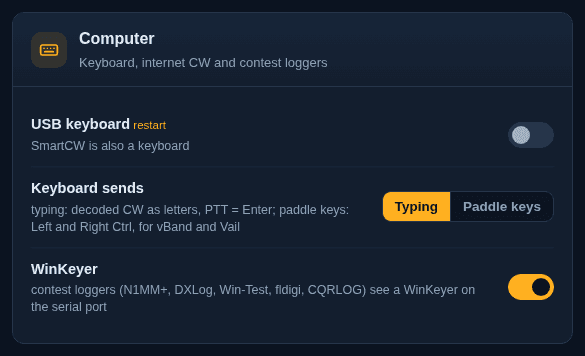
Settings, Computer: USB keyboard off, Keyboard sends set to Typing with Paddle keys beside it, and WinKeyer on
Settings › Computer: the keyboard, the paddle keys and the WinKeyer.

USB MIDI

A port named SmartCW, channel 1. Keyed: SmartCW is the keyer and the software gets fully timed CW, from paddles, key, text, memories and beacon. Paddles: the software is the keyer and gets the raw contacts.

Keyer or text, key down
65
Straight key closed
64
PTT button (pulse) or audio-mode PTT (held)
66
Dit contact, paddles mode
67
Dah contact, paddles mode
68

Default notes; every one can be changed, or set to Vail's with one click. Nothing is sent in practice mode.

Serial and TCP

The USB serial port (any baud rate) and TCP port 23 speak the same protocol, until a logger's first WinKeyer command takes the serial port over. What you type is keyed and echoed as it is sent; what you key comes back decoded. A line starting with ! is a command.

$ nc smartcw.local 23
> !wpm 22
> !nr 1
> !mem 1
> cq cq de on6ure k

Keyboard and API

As a USB keyboard, SmartCW types what it decodes into whatever window has focus: a logger, a chat, a text file. PTT types Enter. Or the paddles press Ctrl keys, for internet CW.

The web API behind the page is yours too: settings, sending, memories, beacon and tune as plain HTTP, and every element and decoded character as a live event stream. CORS is open, so your own pages can use it.

$ curl -d 'text=cq test' http://smartcw.local/api/send

Get a SmartCW

One model, ready to plug in. The firmware is open and updates by drag and drop, so it keeps growing.

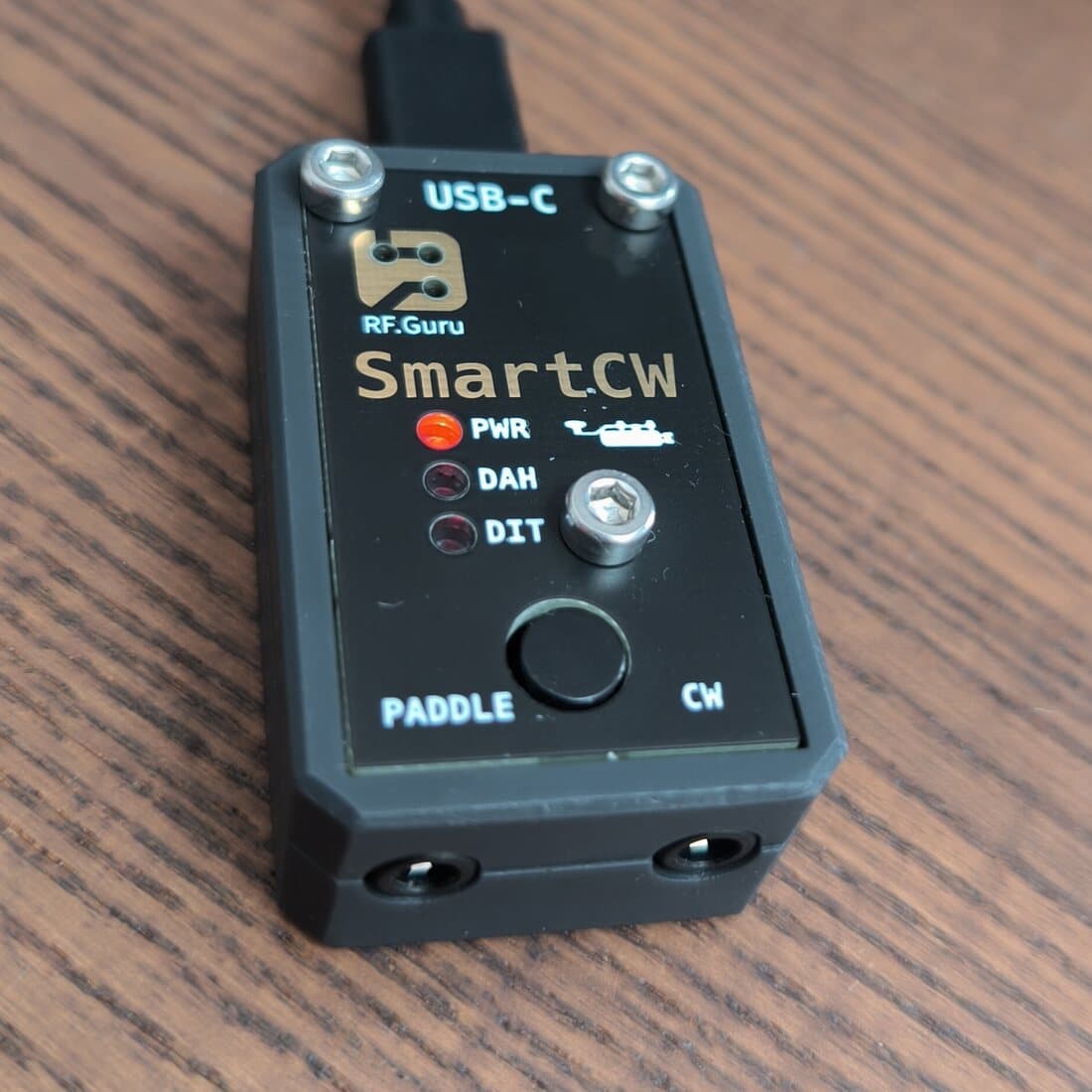
SmartCW close up: USB-C on top, the RF.Guru mark, the SmartCW name, the PWR, DAH and DIT LEDs, the PTT button, and the PADDLE and CW jacks on the front edge

SmartCW

Iambic keyer, CW trainer and CW interface

Small enough to sit beside the paddle, powered by the computer it plugs into. At the desk it keys your radio and your SDR software; on its own with a pair of headphones it is a practice oscillator with a complete trainer behind it.

  • One USB-C cable for power, serial, MIDI, the network and the keyboard
  • PADDLE and CW jacks: paddles or a straight key in, your radio out
  • Piezo sidetone and line out, PWR, DAH and DIT LEDs, a PTT button
  • Works with WinKeyer contest loggers, SDR software, vBand and Vail
  • Its own web page and CW trainer at smartcw.local
  • Open-source firmware, MIT, updated by drag and drop

Firmware updates free, from GitHub

Order from the RF.Guru shop
Up and running in a minute

Four steps, and the last one is just opening a page.

  1. 1

    Plug in your paddles

    Into the PADDLE jack: dit on the tip, dah on the ring, or set paddleSwap if you are left-handed. A straight key works too, even on a mono plug.

  2. 2

    Connect your radio

    The CW jack to the radio's key input, with the radio set for a straight key. For FM, SSB or a data input, set the output to Audio + PTT: the jack becomes PTT and the tone goes out on line out.

  3. 3

    USB-C to the computer

    It powers SmartCW. The serial port, MIDI and the network appear by themselves on Linux, macOS and Windows 10/11: nothing to install.

  4. 4

    Open smartcw.local

    Or 192.168.7.1. Set your callsign, speed and memories, and start training. Settings save themselves.

smartcw.local is answered by SmartCW's own mDNS responder, so it resolves at once through Avahi, Bonjour and Windows. Service browsers list it as a Web Site and a Telnet service. The address http://192.168.7.1/ always works.

Open firmware, updated by drag and drop

Pre-built UF2 files come with every release on GitHub. Your settings are kept.

Four ways to update

  1. 1

    From the web page

    System › Restart into update mode, then drag smartcw-*.uf2 onto the RPI-RP2 drive that appears.

  2. 2

    With a command

    Send !bootloader over serial or TCP, then drag the UF2 onto RPI-RP2.

  3. 3

    Through config.txt

    Boot with both paddles held, replace the contents of config.txt with the single word firmwareupdate and eject.

  4. 4

    BOOTSEL, for recovery

    Unplug, hold BOOTSEL, plug in, release, and drag the UF2 onto RPI-RP2.

flash_nuke.uf2, shipped with every release, erases the whole flash, config.txt included; flash the firmware after it.

Open-source firmware

v2.2.0 · 25 October 2026

C++ for the RP2040, structured like SmartFOX, with the web page as plain HTML, CSS and JavaScript. Read it, build it with PlatformIO, change it.

v2.2.0RP2040PlatformIOMIT

Standing on shoulders

Specifications

Processor
Raspberry Pi RP2040; firmware in C++ on the Arduino core, built with PlatformIO
Connection
USB-C, powered by the cable
USB
One composite device: serial (CDC-ACM), MIDI, network (CDC-NCM), keyboard (HID) and a drive (mass storage), as enabled
Front
PADDLE and CW jacks, PWR, DAH and DIT LEDs, the PTT button
Key types
Iambic A, iambic B, ultimatic, bug, straight key
Speed
5 to 99 wpm, also on the box (PTT + paddle); weighting 25 to 75 %, dah ratio 2.5 to 4.5; Farnsworth for text
Sidetone
300 to 2000 Hz on the piezo and line out, levels 1 to 10
Output
Key line, PTT with the tone on line out (lead 0–500 ms, tail 0–3000 ms), or practice; keying compensation 0–50 ms, first-element extension 0–150 ms
Timing
A 1 kHz interrupt, independent of USB and network traffic
Network
192.168.7.1, smartcw.local over mDNS (IPv4 and IPv6 link-local), DNS-SD; web on port 80, text on TCP port 23, cwdaemon on UDP port 6789
Loggers
K1EL WinKeyer 2 protocol on the USB serial port; cwdaemon over the USB network
Internet CW
vBand and Vail: the paddles as Left and Right Ctrl, or Vail's MIDI notes
MIDI
Channel 1, configurable notes; keyed or paddles mode
Settings
config.txt, saved by itself two seconds after a change
Computers
Linux, macOS, Windows 10/11, no driver

Questions, answered

Do I need a driver or an app?
No. Linux, macOS and Windows 10/11 have the USB network, serial and MIDI built in. The web page is served by SmartCW itself, at http://smartcw.local/ or http://192.168.7.1/, and works without an internet connection.
Does it get in the way of my internet connection?
No. SmartCW gives your computer an address next to its own (192.168.7.16 and up) but hands out no gateway and no DNS server, so your computer keeps its own route to the internet. smartcw.local is answered by SmartCW's own mDNS responder, through Avahi, Bonjour and Windows alike.
Can I use a straight key, or a bug?
Yes. Set the key type to Straight (or hold PTT for 1.5 seconds) and everything follows the key; a mono plug works. With Bug, the dit paddle sends automatic dits and the dah paddle is manual. The decoder follows your own speed on both.
Will it transmit while I am training?
No. The trainer pages hold practice mode while they are open: nothing goes to the CW jack and nothing over MIDI. Within ten seconds after you leave them, SmartCW transmits normally again.
How do I use it with SDR software?
Pick the SmartCW MIDI input in your software's MIDI or controller settings. In keyed mode map note 65 (and 64 for a straight key) to CW key and note 66 to PTT toggle; in paddles mode, 67 and 68 to the dit and dah paddles and let the software do the timing. Every note number can be changed. The MIDI reference.
Does it work with my contest logger?
If the logger supports a WinKeyer, yes: SmartCW's serial port answers the K1EL WinKeyer 2 protocol, so N1MM+, DXLog, Win-Test, fldigi, CQRLOG, Log4OM and other WinKeyer loggers can use it. Choose SmartCW's serial port as the WinKeyer, at the usual 1200 baud. Linux loggers that key through cwdaemon (CQRLOG, TLF, xlog, KLog) send to smartcw.local, port 6789. What it supports.
Can I use it for vBand or Vail?
Yes. In Settings › Computer turn the USB keyboard on, set Keyboard sends to Paddle keys and restart once: the dit and dah paddles then press Left and Right Ctrl, which is what vBand and Vail listen for. Vail also works over MIDI: Settings › USB MIDI › Vail notes.
Can I change the speed without a computer?
Yes. Hold PTT and tap the dit paddle for 1 wpm slower or the dah paddle for 1 wpm faster. When you let go, SmartCW plays the new speed on the sidetone, never on the air, and remembers it.
My radio is on FM or SSB, or I want a data input. Can SmartCW still key it?
Yes: set the output to Audio + PTT. The CW jack then keys PTT, 50 ms before the first tone and 400 ms after the last (both adjustable), and the CW tone goes out on line out to the radio's microphone or data input.
How do I edit config.txt?
On the Settings page, with a command (!wpm 22), or as a file: hold both paddles while you plug in and a USB drive named SMARTCW appears. Edit, save and eject with your file manager's Eject: SmartCW restarts with your file. A bare umount sends no eject; send !reboot or re-plug instead. Delete the file and eject to get the defaults back.
How do I go back to the factory settings?
Settings › Reset to defaults keeps your callsign, name and memories; !defaults all clears those too. To erase the whole flash, config.txt included, flash flash_nuke.uf2 from the release, then the firmware.
Can I write my own software for it?
Yes. The serial port and TCP port 23 speak a plain text protocol, and the web page runs on a JSON API with a live event stream that your own pages can use too (CORS is open). Both are documented in INTEROP.md.

Every setting, command and LED in the README, the protocols in INTEROP.md.

Questions before you order?

Your radio, your paddle, your software: ask the RF.Guru team. Bugs and ideas for the firmware go to GitHub.